By Sudipta Dhara
Published 2026-10-10
Last updated 2026-10-18
AI disclosure: drafted with AI assistance.
Disclosure: this page has no affiliate or referral links.
Who this is for: developers and DevOps engineers · Intermediate · You’ll need: root on a Linux host running Docker Engine, Compose optional, and about 30 minutes
Your VPS feels fine until one container eats the RAM, fills /, or dies with exit 137 and you have no proof of which limit fired. docker stats is green one minute and the host is swapping the next.
Direct answer: Put a memory cap and a matching swap cap on every container that shares the host, prove one real job under that cap, then cap disk with log rotation and a measured prune — before you buy more RAM.
Doesn’t apply when: you run Kubernetes LimitRanges, a managed serverless product, or a single dedicated host that already has one process and no neighbours.
How we test (review criteria / methodology)
This checklist only cites numbers we already measured on published ProDevs guides. Memory OOM pairs come from the 29 September 2026 docker run lab on Docker Engine 28.5.1 (Docker memory limits). Idle Postgres floors come from the 29 September 2026 postgres:16-alpine run (Idle Postgres RAM). Disk log growth and prune behaviour come from the 5–9 October 2026 test VM on Docker CE 29.8.2 (Docker disk full). Kernel-vs-VM context comes from the Linux VPS reading on Docker Engine 28.5.1 (Docker or a VPS). We do not invent new lab numbers on this page.
Primary sources checked next to a date (CR-03): on 29 September 2026 we re-read Docker docs: resource constraints for equal --memory / --memory-swap behaviour. On 29 September 2026 we re-read PostgreSQL docs: resource usage for the shared_buffers starting advice. On 18 October 2026 we re-read kernel Documentation: /proc filesystem for the OOM-killer fields that show up when a cgroup kill hits. On 5 October 2026 we re-read Docker docs: configure logging drivers for the default of no log rotation.
Who it’s for
You run Docker on one VPS or a small homelab host, you share that host across a few containers, and you want a single checklist that ties memory caps, a real OOM check, and disk control together.
Not for
Kubernetes pod limits, JVM or Node heap tuning, cloud auto-scaling policy design, and “which VPS vendor is cheapest” shortlists are other jobs. This page stays on one Linux Docker host.
What broke when we skipped the checklist
We kept uncapped neighbours next to work we cared about. When a job climbed, the kernel killed a process and the host looked “too small.” Buying RAM first would have hidden the neighbour. The fix that stuck was equal --memory and --memory-swap, a job run that printed OOMKilled and exit 137, then json-file log limits that only applied after re-create — the same traps the linked labs document. Disk filled later for a different reason: an old container kept writing unbounded logs after daemon.json changed.
How do I set memory caps?
- Read steady use while the app does ordinary work:
docker stats --no-stream --format 'table {{.Name}}\t{{.MemUsage}}\t{{.MemPerc}}'
- Set
--memoryand--memory-swapto the same value, about 1.5× that steady line, or above the heavy job if the job is higher (Docker memory limits; Docker docs: resource constraints checked 29 September 2026). - In Compose, copy the same pair as
mem_limit/memswap_limitordeploy.resources.limits.memorywith swap disabled the same way. - Never leave a production neighbour uncapped on a shared host. By default a container can use as much memory as the host scheduler allows (Docker docs: resource constraints checked 29 September 2026).
Shareable fact: equal --memory and --memory-swap turn swap off for that container; leave --memory-swap unset and Docker may allow about twice the memory value as memory+swap when the host has swap (Docker docs: resource constraints checked 29 September 2026). Caveat: host swap support must be on (SwapLimit=true in docker info).
How do I prove the OOM instead of guessing?
- Run one real job (import, test suite, or a known allocate) under the cap.
- On exit, inspect:
docker inspect -f '{{.State.OOMKilled}} {{.State.ExitCode}}' NAME
- Treat
OOMKilled=trueand exit137as “the cap worked; raise both numbers or hold less,” not as “the VPS is broken.” The host still exposes OOM fields under/procwhen you need the kernel side of the kill (kernel Documentation: /proc filesystem checked 18 October 2026). - Only-we-have lab (29 September 2026, Docker Engine 28.5.1, linux/amd64 host, MemTotal ≈ 47.05GiB): an 8 MiB payload under a 64 MiB equal memory/swap cap exited 0 with
OOMKilledfalse; a 48 MiB hold under a 32 MiB equal cap exited 137 withOOMKilledtrue (Docker memory limits).
Copy-paste shapes from that lab:
docker run --name mem-ok \
  --memory 64m --memory-swap 64m --cpus 0.25 \
  alpine \
  sh -c 'x=$(dd if=/dev/zero bs=1048576 count=8 2>/dev/null | tr "\0" "A"); echo "bytes:${#x}"'

docker run --name mem-cap \
  --memory 32m --memory-swap 32m --cpus 0.25 \
  alpine \
  sh -c 'x=$(dd if=/dev/zero bs=1048576 count=48 2>/dev/null | tr "\0" "A"); echo "bytes:${#x}"'
How do I set CPU ceilings?
- Add
--cpus(or Composecpus/deploy.resources.limits.cpus) on every noisy neighbour so one compile job cannot pin the whole VPS. - Size CPU after memory: a memory OOM is a hard kill; CPU starvation looks like “slowness” without an exit code.
- Re-check
docker statsCPU% during the job you care about, not only at idle.
How do I size Postgres and other stateful floors?
- Cap the database container before you chase
shared_buffers. - Trust
docker stats, not the SQL GUC, for the idle floor: on 29 September 2026 an idlepostgres:16-alpineused 17.34MiB of a 512MiB cap whileSHOW shared_buffersstill printed 128MB; a second idle container withshared_buffers=32MBused 21.73MiB (Idle Postgres RAM; PostgreSQL docs: resource usage checked 29 September 2026). - Raise the cap from real query load, not from idle.
How do I keep disk from filling?
- Measure before delete:
df -h /
docker system df
docker system df -v
- Expect three buckets: container logs, image layers, build cache (Docker disk full; Docker docs: docker system df checked 9 October 2026).
- Put
max-sizeandmax-fileon thejson-filedriver. Docker’s default is no log rotation (Docker docs: configure logging drivers checked 5 October 2026). - Re-create containers after
daemon.jsonlog limits. On the 5 October 2026 test VM, daemon restart anddocker restartleft an old container on{json-file map[]}; only re-create appliedmax-size:10mandmax-file:3(Docker disk full). - Only-we-have log growth (test VM, 5 October 2026): one container at ~89.32 short lines/s wrote 90,642,495 bytes of log in one hour with no limit; a neighbour with
max-size=10mandmax-file=3peaked at 29,854,913 bytes (Docker disk full). - Prune images and build cache only after
docker system dfshows reclaimable space you accept losing. On 27 September 2026 a shared build host held 749.2 GB of images (555.9 GB reclaimable) and 425.8 GB of build cache (Docker disk full). - On Docker Engine 29 fresh installs, also size
/var/lib/containerd— image snapshots may not sit under legacyoverlay2(Docker docs: containerd image store checked 9 October 2026).
What else belongs on the host checklist?
- Confirm
MemoryLimit=trueandSwapLimit=trueindocker infobefore you trust swap-off flags. - Keep Compose files and
docker runflags in the same repo as the app so the next deploy does not drop caps. - Separate “install Docker on the VPS” from “rent a VPS”: a container shares the host kernel; a VM keeps its own (Docker or a VPS; Docker docs: what is a container checked 29 September 2026).
- Do not expose daemon sockets or common management ports to the public internet.
- Note who owns each container before you prune or re-create it.
- After changes, re-run the memory job once and re-check
docker system df.
Alternatives
| Approach | When it fits | Trade-off |
|---|---|---|
| This checklist on one Docker host | Few containers, one VPS or homelab | You still operate the host |
| Managed containers / PaaS | You want the vendor to own the node | Less control; different limits model |
| Kubernetes LimitRange / ResourceQuota | You already run a cluster | This page’s docker run flags do not apply |
Cons
- Caps that are too tight kill healthy peak jobs; you must measure the peak, not only idle.
- Log limits in
daemon.jsondo not retrofit old containers — missed re-creates keep filling disks. - Prune commands can delete images you still need if you skip
docker system dffirst. - The checklist does not replace backups, TLS, or firewall rules.
Verify
- Every important container shows a non-default memory limit in
docker inspect. - One deliberate over-cap test (or a documented waiver) exists for the service you care about.
docker system dfanddf -h /were recorded after log limits and any prune.- Compose (or runbooks) match the live flags.
docker infostill shows MemoryLimit and SwapLimit true after any daemon change.
Troubleshooting
| Symptom | Likely cause | Fix |
|---|---|---|
Exit 137, OOMKilled=true |
Cap below the job | Raise memory and swap together, or reduce the job |
| Host thrash, no OOMKilled | Uncapped neighbour or swap confusion | Cap neighbours; set equal memory/swap; check SwapLimit |
/ full, logs huge |
No json-file rotation, or limits not re-created | Set max-size/max-file, re-create containers |
overlay2 path empty on Docker 29 |
containerd image store | Inspect /var/lib/containerd as well |
Raw readings
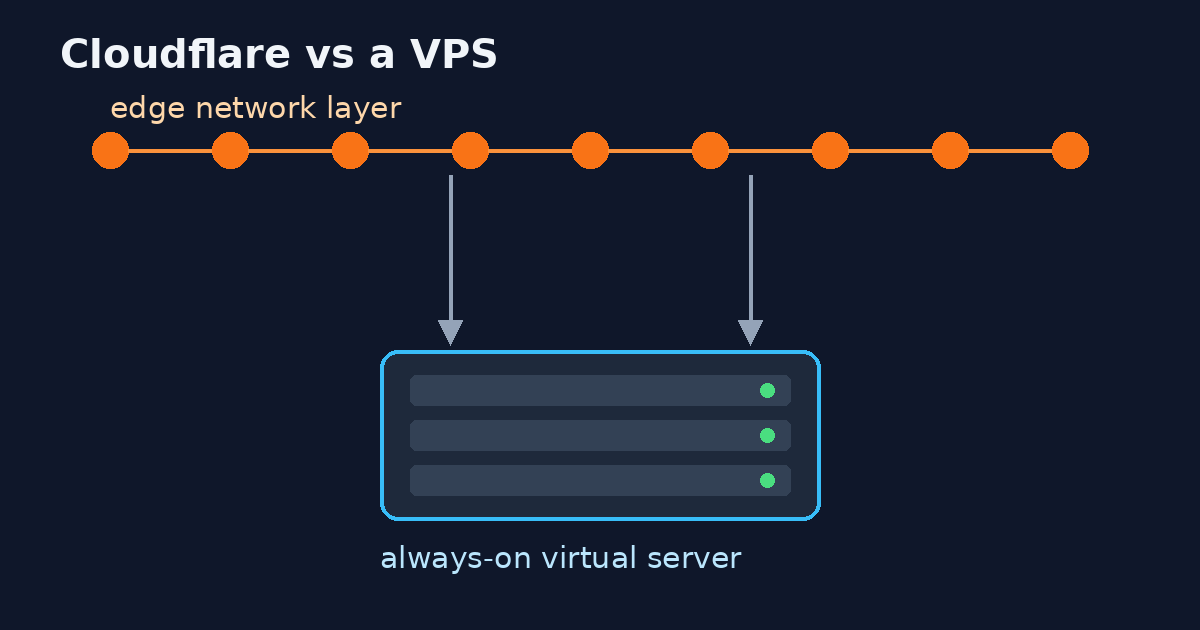
Readings that support other pages, not repeated as claims here: hosted-minute cost tables from the runners tutorial; Cloudflare vs VPS timings; bind-mount vs volume micro-benchmarks. Use those guides when those questions are the ones you have.
Next step
Pick one live container on your VPS today: set equal memory/swap from docker stats, run one real job, and write down OOMKilled and exit code. Then open Docker disk full and apply log limits with a re-create.
Talk to ProDevs if you want us to run the diagnostic on your host: prodevs.in/services/.